By PURPLELEC | 19 September 2025 | 0 Comments
Combining Docking Stations and KVM Switches: An Innovative Solution for Multi-Device Management
Managing multiple devices such as laptops and desktop computers can be quite cumbersome, especially when it comes to sharing displays, keyboards, and other peripherals. However, combining a docking station with a KVM switch can bring about a revolutionary change. This setup helps expand connectivity, streamline the workspace, and enable easy device switching.

Why Combine a Docking Station with a KVM Switch?
There are several advantages to integrating a docking station with a KVM switch:
Overcoming Laptop Port Limitations
Modern laptops are designed to be compact and portable, but they often lack sufficient ports for connecting external displays and peripherals. A docking station can significantly expand your connectivity options by providing multiple ports, including HDMI, DisplayPort, USB-A, USB-C, and Ethernet.
Efficient Device Sharing
A KVM switch allows you to share peripherals and displays among multiple devices. When paired with a docking station, it can bridge the gap between the limited port availability of laptops and the powerful capabilities of desktop computers.
Enhanced Productivity
With a KVM switch, you can effortlessly switch between devices. This enables multitasking, seamless system transitions, and uninterrupted workflow without the need to manually disconnect and reconnect cables.
Simplified Workspace
Both devices contribute to reducing clutter by consolidating cables and peripherals, resulting in a neat and organized desktop space.
Support for High-Resolution Displays
This setup supports high-resolution multi-display configurations, such as dual 4K displays at 60Hz or higher, making it ideal for professionals and gamers alike.
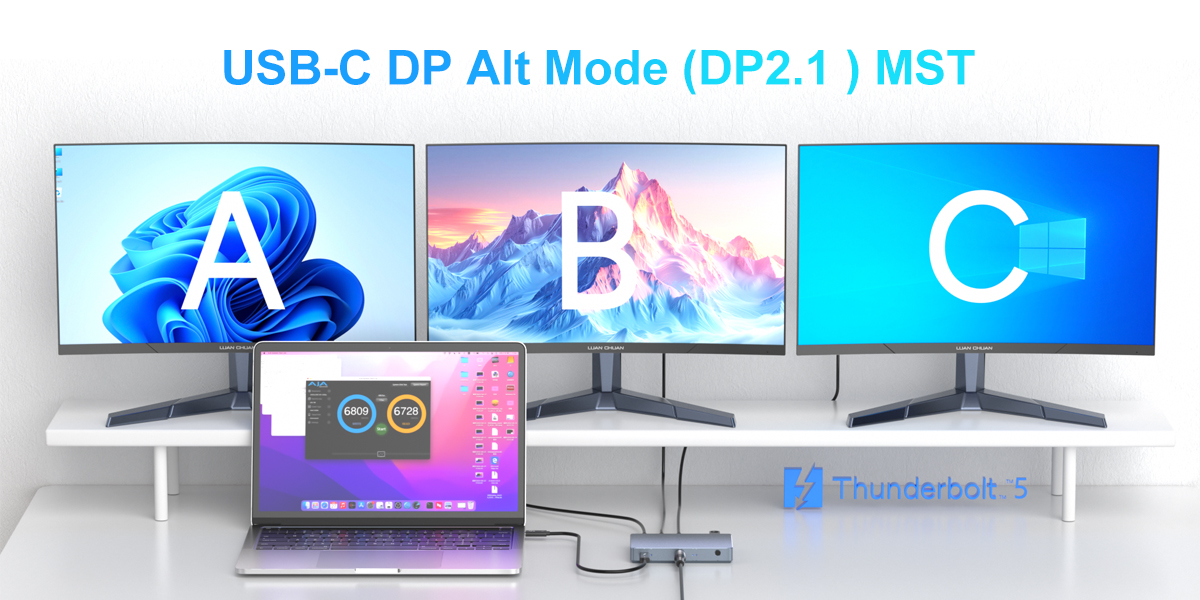
Considerations Before Connecting a Docking Station to a KVM Switch
Device Compatibility
Not all docking stations and KVM switches work seamlessly together. It is essential to check their compatibility with your laptops, desktop computers, and displays, particularly in terms of resolution and refresh rate.
Docking Station Standards
Docking stations do not adhere to a universal standard. Therefore, test your docking station with the KVM switch to ensure it can properly handle video and USB pass-through.
Desktop USB-C Limitations
Although USB-C KVM switches are available, most desktop computers lack USB-C ports with DP Alt Mode (required for video output). It is advisable to opt for docking stations and KVM switches that utilize HDMI or DisplayPort.
Peripheral Support
If you use specialized peripherals like gaming keyboards or webcams, ensure they are compatible with your KVM switch. Some KVM switches offer Dynamic Device Mapping (DDM) functionality to enhance compatibility.

Connection Methods
Option 1: Standard Dual-Device Setup
This method is ideal for connecting a docking station and a desktop computer to a dual-display KVM switch, enabling seamless switching between two systems.
Dock Output: Ensure your dock has two video outputs (e.g., HDMI or DisplayPort) and at least one USB-A or USB-C output.
KVM Input: Connect the dock's outputs to the inputs of the KVM switch for the laptop.
Desktop Input: Connect the desktop's video and USB outputs to another set of KVM inputs.
Peripheral Sharing: Plug in your keyboard, mouse, webcam, or other devices into the KVM switch for shared use.
For example, this setup works well with a dual-display KVM switch that has HDMI and USB-A ports. The docking station connects to one computer's input, while the desktop connects to the other. Both systems can share displays and peripherals, allowing for efficient switching without rewiring.
Option 2: Advanced USB-C Dock Setup
For laptops that rely on USB-C ports, this option simplifies the connection process and ensures compatibility.
Docking Station: Use a USB-C docking station to connect your laptop for video and USB peripheral output.
KVM Switch Connection: Link the dock's video and USB outputs to the inputs of the KVM switch.
Display and Peripheral Sharing: Connect the shared displays and USB devices directly to the KVM switch.
For instance, a MacBook Pro user set up a USB-C docking station with DisplayPort output and connected it to a dual-display KVM switch. This allowed them to share dual displays, a gaming mouse, keyboard, and speakers between their laptop and desktop systems. Switching between devices was effortless as the KVM switch handled both video and USB sharing.
Option 3: Using a KVM Docking Station
To simplify the process further, a KVM docking station combines the functionality of a docking station and a KVM switch, reducing the need for multiple devices.
All-in-One Device: Choose a KVM docking station with built-in USB, video, and Ethernet ports.
Device Inputs: Connect your laptops and desktop computers directly to the KVM docking station.
Shared Peripherals: Plug in your displays and USB peripherals into the docking station for automatic sharing between devices.
For example, a user switched to a KVM docking station to connect their laptop and desktop computer. They plugged in dual displays, a webcam, and a keyboard directly into the docking station. This eliminated the need for separate devices, reduced desktop clutter, and enabled quick system switching with the press of a button.
Conclusion
Combining a docking station with a KVM switch can completely transform the way you manage multiple devices, enabling seamless switching, boosting productivity, and creating a clean and organized workspace. Whether you are using a combination of one laptop and one desktop, two laptops, or two desktops, the right setup depends on your specific needs and workflow preferences.
For a more integrated solution, Purplelec docking stations offer customized all-in-one functionality for different device combinations. From dual or triple display support to versatile docking station ports, these devices can simplify your workspace and take multitasking to the next level.
RJ45 Connector: The Cornerstone of Modern Network Data Transmission
Triple-Monitor Setup: An Immersive Upgrade Guide for Gamers
Leave a Reply
Your email address will not be published.Required fields are marked. *