By PURPLELEC | 19 September 2025 | 0 Comments
Triple-Monitor Setup: An Immersive Upgrade Guide for Gamers
For seasoned gamers, a triple-monitor configuration offers a transformative gaming experience, providing an expansive field of view and unparalleled immersion. This guide will walk you through setting up three monitors for gaming, troubleshooting common issues, and optimizing your experience.
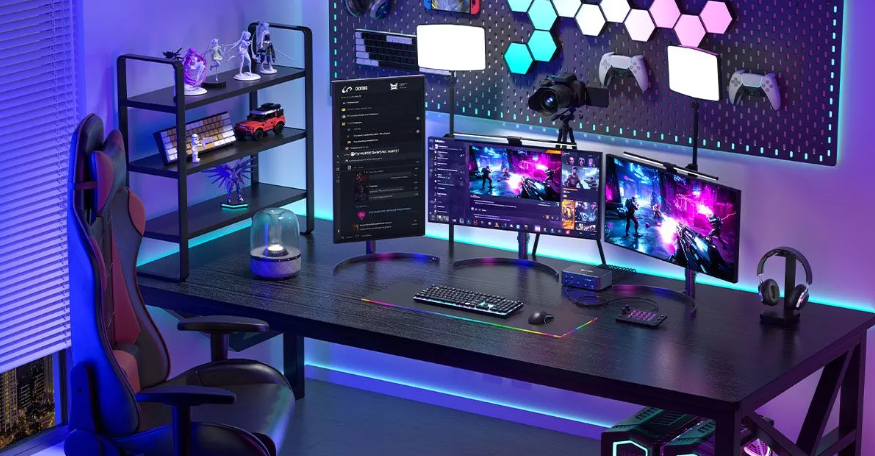
Why Opt for a Triple-Monitor Gaming Setup?
1、Immersive Experience: A wider field of view makes you feel truly immersed in the game world, enhancing the sense of presence.
2、Enhanced Awareness: Track multiple in-game elements, such as maps, inventories, or chats, without switching windows or tabs.
3、Multitasking: Use one screen for gaming while dedicating the other two to game guides, chats, and streaming tools for an uninterrupted experience.
Monitor Selection and Configuration
1、Size and Resolution:
Optimal Size: Choose monitors between 27 and 32 inches for a balanced view.
Resolution Options: Opt for 1080p for budget setups, 1440p for clearer visuals, or 4K for ultimate clarity.
Matching Monitors: Use identical monitors to ensure consistent color and size. Narrow bezels are ideal for a seamless viewing experience.
2、Refresh Rate and Response Time:
Gaming: Select a refresh rate of 144Hz or higher and a response time of 1ms for smooth performance.
Office Work: A refresh rate of 60Hz to 75Hz is sufficient for everyday tasks.
3、Ergonomics and Layout:
Position monitors at the optimal angle to reduce neck strain.
Keep them at eye level for prolonged comfort.
4、Ports and Connections:
Ensure compatibility with your graphics card. HDMI, DisplayPort, and USB-C are common options.
Use high-quality cables and consider adapters if necessary, ensuring they support the required resolution and refresh rate.
Graphics Card and Power Requirements
1、Graphics Card Selection:
Choose a card that supports at least three video outputs, such as NVIDIA RTX or AMD RX series.
Verify that your graphics card supports the resolution and refresh rate of your monitors. For instance, running three 4K monitors requires a high-end GPU with sufficient VRAM, like the RTX 4080 or RX 7900 XT.
2、Power Management:
A high-performance setup with multiple monitors may necessitate a surge protector or uninterruptible power supply (UPS) to guard against power fluctuations.

Workspace Setup and Software Tools
1、Workspace Configuration:
Ensure your desk is large enough to accommodate three monitors side by side. A corner desk can provide additional space.
Use adjustable stands or VESA mounts to save desk space and align monitors perfectly.
Keep cables tidy with cable ties, clips, or management boxes to prevent tangling.
2、Software Tools:
Install the latest drivers for your GPU to ensure compatibility and performance.
Utilize tools like NVIDIA Surround, AMD Eyefinity, or third-party applications to configure and customize your display settings.
Step-by-Step Guide to Setting Up Triple Monitors
1、Connect Monitors:
Use appropriate cables (HDMI, DisplayPort, or VGA, depending on your monitor and GPU compatibility) to connect each monitor to the graphics card. Ensure each connection is secure.
2、Configure Graphics Card Settings:
NVIDIA: Open the NVIDIA Control Panel and navigate to the "Set up multiple displays" section. Enable "Surround" to combine the three monitors into one large display, extending your gaming or workspace across all screens. Adjust the display layout as needed.
AMD: Use AMD Radeon Settings or Catalyst Control Center to activate AMD Eyefinity. This tool helps you set up monitors in a virtual desktop array for a seamless multi-monitor experience. You can also configure bezel correction to account for the space between monitors, ensuring smooth visual transitions.
3、Adjust Monitor Settings:
In your system's display settings, virtually align the monitors, adjust the resolution to the highest supported value, and set the orientation (landscape or portrait) as desired.
4、Optimize for Gaming:
Adjust the field of view (FOV) and resolution in your game settings to match your triple-monitor setup, ensuring an immersive experience. Enable any multi-monitor support or bezel correction options available.
5、Personalize Your Setup:
Adjust the position of your monitors for comfort and style. Use monitor stands for adjustments and add lighting elements, such as RGB light strips, to enhance the ambiance. A comfortable chair and desk configuration will complete the experience.
This setup ensures a smooth and enjoyable gaming or working experience across three monitors, maximizing performance and comfort.
Simplify Your Setup with a KVM Dock

Why Use a KVM Dock?
If you have multiple PCs, such as two desktops, a PC and a console, or need to manage multiple devices, a KVM dock is essential. It allows you to share monitors and peripherals across these devices, resolving common issues like insufficient ports or frequent cable swapping. The DS018R goes a step further by integrating KVM switch functionality with docking station capabilities, streamlining your workflow effortlessly.
Troubleshooting Common Triple-Monitor Issues
Here are some common problems and their solutions:
1、Monitor Not Detected:
Check all cables for proper connection.
Ensure your graphics drivers are up to date.
Verify that you've selected the correct input source on your monitor.
2、Screen Tearing:
Enable G-Sync (NVIDIA) or FreeSync (AMD) for smooth frame synchronization.
Adjust refresh rates to ensure they match across all monitors.
Disable V-Sync in your game settings if using G-Sync or FreeSync.
3、Resolution/Aspect Ratio Issues:
Ensure your monitors are set to their native resolution in display settings.
4、Image Flickering or Distortion:
Check for damaged cables and replace them if necessary.
Ensure your monitors are running at the correct resolution and refresh rate.
Conclusion
A triple-monitor configuration is not just for professionals; it's a powerful upgrade for any gamer looking to enhance their experience. With the right equipment, including a robust graphics card, high-quality monitors, and tools like the DS018R to simplify peripheral management, you'll conquer the gaming world in style.
Combining Docking Stations and KVM Switches: An Innovative Solution for Multi-Device Management
QH005 KVM Dock: The Ultimate Solution for Efficient Dual-Laptop Management
Leave a Reply
Your email address will not be published.Required fields are marked. *