By PURPLELEC | 15 May 2026 | 0 Comments
Everything You Need to Know About Docking Stations
In today’s fast-paced digital era, the value of a docking station is far beyond “nice to have.”
Whether you work at a conference table, your home balcony, or a temporary hotel desk, a reliable docking station is essentially giving your laptop a “second heart.” It unifies scattered peripherals, saves you from constant cable-swapping, and lets you avoid bending over just to plug in a USB drive. Your keyboard, monitor, external hard drive, Ethernet cable, and power supply—all connected through one hub. Just plug in the main cable and your entire workspace instantly comes online.

I often tell my colleagues: a good docking station is like a magic brick. Place your laptop on it, and everything else springs to life.
If you care about a clean workspace at home, a docking station becomes even more important. Route all cables from the back of the dock, and your desk instantly looks cleaner—no messy wires, just a seamless workstation built around your laptop and monitor.
For people who frequently move between locations, a docking station is your “anchor” for mobile productivity. Whether you’re at a client’s office, a café, or a branch location, one plug transforms your laptop into a desktop setup with all essential ports ready.
In office environments, it’s also the best way to organize cables—turning scattered devices into one neat hub, saving space and reducing cable wear.
What Exactly Is a Docking Station?
A docking station can be understood as:
A small central hub that allows your laptop to connect to multiple peripherals through a single cable.
A small central hub that allows your laptop to connect to multiple peripherals through a single cable.
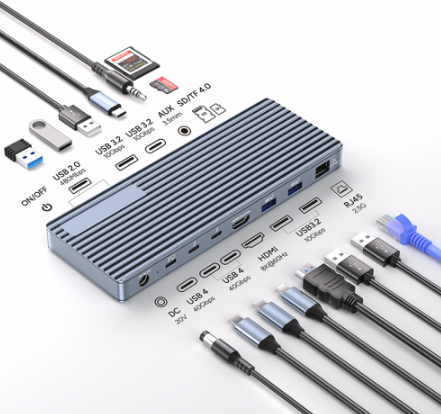
It expands your laptop’s limited ports into a wide selection, giving you near-desktop capabilities. Through a docking station, you can access extra power input, external displays, Ethernet, USB ports, audio jacks—some models even include security locks or anti-theft features.
The main categories of docking stations include:
1. Single-port Docks
Simple devices offering one port such as USB, HDMI, RJ45, or audio. Lightweight, inexpensive, and ultra-portable.
2. Multi-port Docks
The most common and popular type. HDMI, DisplayPort, USB-A, USB-C, RJ45, 3.5mm audio—almost everything you might need. Ideal for multitasking.
3. Direct-plug vs. Cable-based Docks
Direct-plug: compact but may block adjacent ports and have poorer heat dissipation.
Cable-based: slightly larger but more stable, better heat handling, and usually offer more ports—favored by professional users.
4. Mini Docks
Portable, lightweight, and sufficient for basic expansion needs—great for frequent travelers or minimalist work setups.
When choosing a dock, always consider port count, connection type, build quality, compatibility, and support for your specific laptop model.
What Can a Docking Station Do?
Its core value is simple:
It transforms your laptop into a desktop-style workstation.
Main capabilities include:
Port expansion: USB, HDMI, DP, PD power input, Ethernet, and more
External display support:
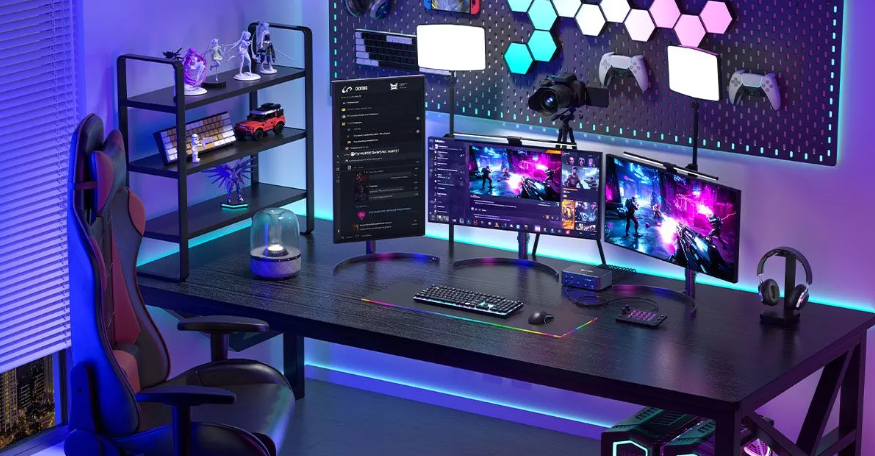
extend or mirror screens, multi-monitor setups
extend or mirror screens, multi-monitor setups
Power Delivery (PD):
charge your laptop through the dock
charge your laptop through the dock
High-speed data transfer:
ideal for cameras, external SSDs, and large files
ideal for cameras, external SSDs, and large files
Stable wired internet:
RJ45 Ethernet is more reliable than Wi-Fi
RJ45 Ethernet is more reliable than Wi-Fi
Audio support:
headphones, speakers, microphones
headphones, speakers, microphones
With everything routed through a single device, your portable laptop instantly becomes a powerful desktop experience.
How Do Docking Stations Work?
It’s quite straightforward:
Your laptop sends data, power, and video signals through a USB-C or Thunderbolt port. The docking station then distributes these signals to individual ports.
That’s why high-end docks often use Thunderbolt 3/4—they support higher bandwidth, faster charging, and better display output.
A docking station performs three major tasks:
1. Data bridging: linking peripherals through high-speed transmission
2. Video output: sending your laptop’s video signal to HDMI/DP ports
3. Power delivery: charging the laptop via PD technology
This is why some docks can simultaneously run high-speed SSDs, drive an 8K monitor, and supply power to your laptop—all at once.
How to Connect a Docking Station
Setup is simple:
- Take out the docking station
- Locate the main USB-C / Thunderbolt cable
- Plug it into your laptop
- All peripherals become instantly active
If issues occur, common causes include:
1. Incompatible port type (e.g., non-video-capable USB-C)
2. Missing drivers (e.g., DisplayLink or MST support)
3. Insufficient power supply
4. Display settings not configured
5. Once these are checked, everything typically works smoothly.
Can Docking Stations Charge Your Laptop? Yes—and the difference is huge.
Typical charging abilities:
USB docks: ~60W
Standard USB-C docks: ~100W
Thunderbolt 3/4 docks: usually 100W
Brand-specific docks: varies by manufacturer
The right power output significantly affects battery longevity:
Correct voltage protects your battery
Stable charging reduces wear on ports
Some docks include smart power management
A stable dock is essentially a health manager for your laptop.

How to Choose the Right Docking Station
Based on years of practical use, here are the most important factors:
1. Choose ports based on your actual needs
Do you need multiple USB-A ports? Dual displays? A gigabit RJ45 port?
Start from your requirements—not the marketing.
2. Match the charging wattage
60W is fine for ultrabooks.
100W is ideal for most performance laptops.
Avoid docks with lower wattage than your original charger.
3. Confirm your display needs
Resolution, refresh rate, number of monitors—these vary widely between models.
If you need 8K or MST multi-display capabilities, pick a dock that explicitly supports them.
4. Check compatibility
Some laptop brands require proprietary docks for full functionality.
5. Look for bonus features
Gigabit LAN, power buttons, Kensington lock slots, etc.—small details, big improvements.
How to Maintain a Docking Station
To ensure long-term performance:
- Clean with a microfiber cloth
- Manage cables to prevent bending
- Keep away from liquids
- Ensure proper ventilation—don’t place it under blankets or soft materials
- Store in a dry environment
- Update drivers and firmware periodically
- These habits keep your dock running smoothly for years
The Future of Docking Stations
Industry trends point to more intelligent, compact, and powerful designs:
- USB-C and Thunderbolt 4/5 becoming standard
- More flexible multi-display support
- Modular designs for portability
- Improved thermal performance
- AI-enhanced device recognition and power optimization
- Better security features (encryption, anti-theft)
Future docking stations won’t just offer “more ports”—they will evolve into intelligent desktop-management hubs.
Conclusion
In this article, we covered:
1. Types of docking stations
2. Key functions
3. Working principles
4. Setup methods
5. Charging capabilities
6. Buying guide
7. Maintenance tips
8. Future trends
If you only remember one idea, let it be this:
A docking station doesn’t just add more ports—it elevates your entire working experience.
When choosing one, focus on:
I. Compatibility
II. Port variety
III.Power delivery
IV. User reviews
V. Heat management
VI. Cable organization
VII. Regular maintenance
With the right docking station, your laptop—and your productivity—can reach a whole new level.
Leave a Reply
Your email address will not be published.Required fields are marked. *