By PURPLELEC | 25 December 2025 | 0 Comments
USB 3.0 vs. 3.1 Hubs: A Guide to Picking the Right One
Don’t let the dazzling "SuperSpeed" buzzwords on product pages steer you wrong. Following the USB Implementers Forum's multiple renaming campaigns, the lines between USB 3.0, 3.1, and even 3.2 have become incredibly blurred. Many users realize too late that their "high-speed" hub suffers from frequent disconnections or severe speed drops when multiple devices are plugged in. To pick a hub that maximizes bandwidth without wasting money, you first need to understand the hardware reality behind 5Gbps vs. 10Gbps.
I. The Core Concepts: The Evolution of Speed and Efficiency
1. USB 3.0: The Reliable Standard
USB 3.0 (now frequently rebranded as USB 3.2 Gen 1) remains the most widely adopted standard. It offers a theoretical bandwidth of 5 Gbps, which is roughly 10 times faster than the legacy USB 2.0. For basic peripherals—such as wireless mouse receivers, keyboards, and standard flash drives—the 3.0 standard provides more than enough overhead.
2. USB 3.1: The Power User’s Choice
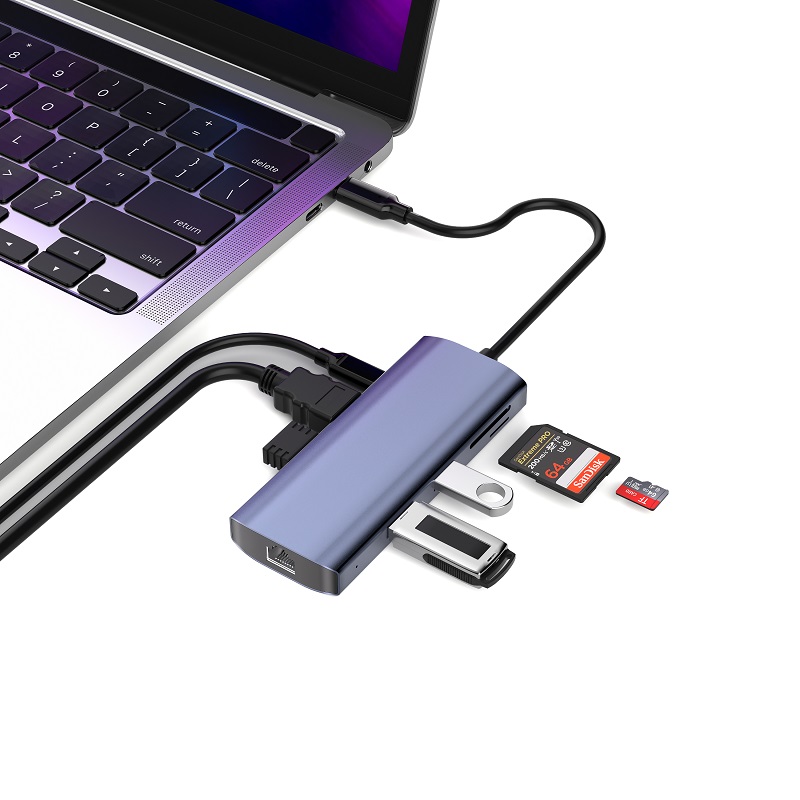
USB 3.1 (specifically USB 3.2 Gen 2) represents a significant technical leap. Its primary advantage is doubling the theoretical transfer speed to 10 Gbps. This makes a world of difference when handling massive files, 4K video assets, or external High-Speed Solid State Drives (NVMe SSDs), where it can slash waiting times in half.

II. Deep Dive: Key Differences at a Glance
To better visualize the performance gaps, consider these four technical dimensions:
| Feature | USB 3.0 Hub | USB 3.1 Hub |
| Bandwidth | 5 Gbps (Ideal for routine file transfers) | 10 Gbps (Built for video editing & big data) |
| Physical Interface | Usually USB-A ports | Predominantly USB-C; supports reversible plugging |
| Power Standard | Basic power delivery (~4.5W-5W) | Supports PD Fast Charging (up to 100W passthrough) |
| Versatility | Primarily focused on port expansion | Often integrates HDMI 2.0, Gigabit Ethernet, and PD ports |
| Cost | Budget-friendly; high value for money | Premium pricing; suited for professional workstations |
III. Buying Strategy: Match the Hub to Your Workflow
Choosing a hub shouldn't be about chasing the highest specs; it should be based on your host device's ports and your specific peripherals.
Scenario A: Lightweight Office & Student Use
If you are only connecting the following:
- Wired/Wireless mice and keyboards.
- Standard office flash drives or mobile mechanical hard drives.
- Printers or scanners.
Recommendation: USB 3.0 Hub. The 3.0 protocol fully covers the peak speeds of these devices. It runs cooler, consumes less power, and is the most cost-effective solution for daily tasks.
Scenario B: Professional Content Creation & High-Performance Needs
If your daily routine involves:
- High-volume data: Frequently reading/writing 4K footage or RAW photos.
- High-speed storage: Utilizing external M.2 NVMe SSD enclosures.
- Single-cable setup: Wanting one hub to handle display output (HDMI), Ethernet, and laptop charging simultaneously.
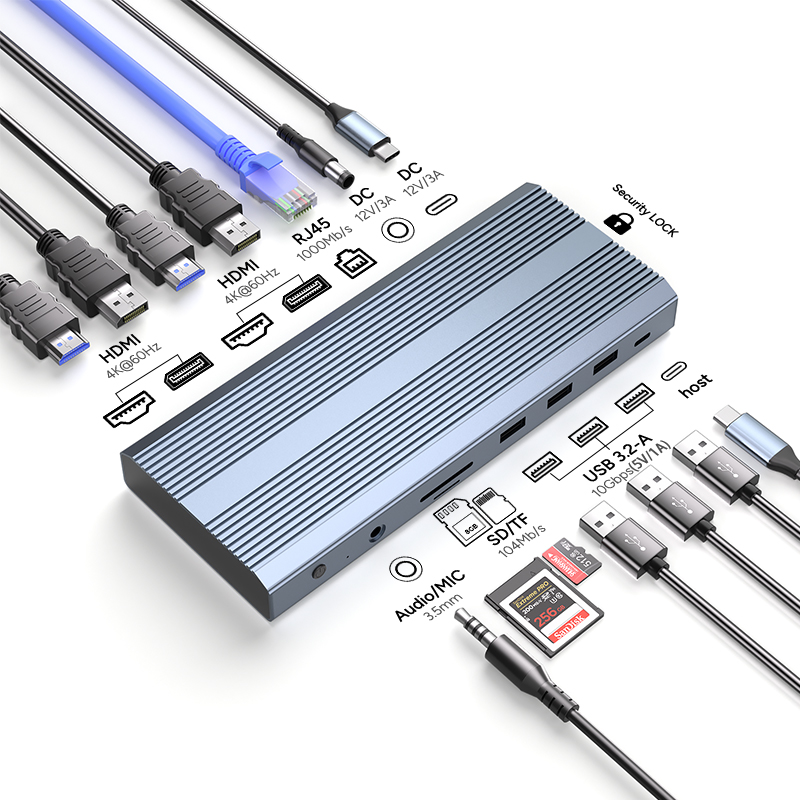
Recommendation: USB 3.1 (Gen 2) Hub. Its high bandwidth ensures that multiple devices can run at full load without interfering with each other's speeds. Most 3.1 hubs support Power Delivery (PD), allowing for a "one-cable" clean desk setup.
IV. Final Summary & "Buyer Beware" Tips
1. Mind Backward Compatibility: Whether you buy 3.0 or 3.1, they are compatible with older devices. However, your actual speed will be bottlenecked by the slowest link in the chain.
2. Watch the Heat: USB 3.1 hubs generate more heat due to higher data throughput. It is highly recommended to prioritize aluminum alloy casings for better heat dissipation and longevity.
3. Verify the Specs: Many sellers exploit confusing naming conventions (like calling USB 3.0 "USB 3.1 Gen 1") to mislead customers. When buying, always look for the "10Gbps" metric to ensure you are getting true 3.1 performance.
Leave a Reply
Your email address will not be published.Required fields are marked. *