By PURPLELEC | 15 May 2026 | 0 Comments
HDMI Fault Diagnosis Solution
In today's digital office environments, HDMI interfaces play an irreplaceable role by enabling high-fidelity real-time transmission of video and audio between devices through efficient signal transfer. Using HDMI cables, devices such as laptops, desktops, monitors, projectors, and TVs can establish quick connections, facilitating efficient presentations, video conferences, and multimedia content sharing.

However, despite its widespread adoption and significant advantages, HDMI technology still encounters practical challenges affecting user experience. This guide provides targeted optimization solutions to enhance the smoothness and stability of device interconnections.
1. HDMI Overview
As a hallmark of high-definition multimedia interfaces, HDMI achieves efficient transmission of uncompressed digital audio-video signals via a single cable, delivering near-lossless audiovisual experiences. Its core strengths include support for multi-channel audio formats—from stereo to immersive surround sound—and high bandwidth enabling stable 4K ultra-HD transmission with vivid details and vibrant colors.
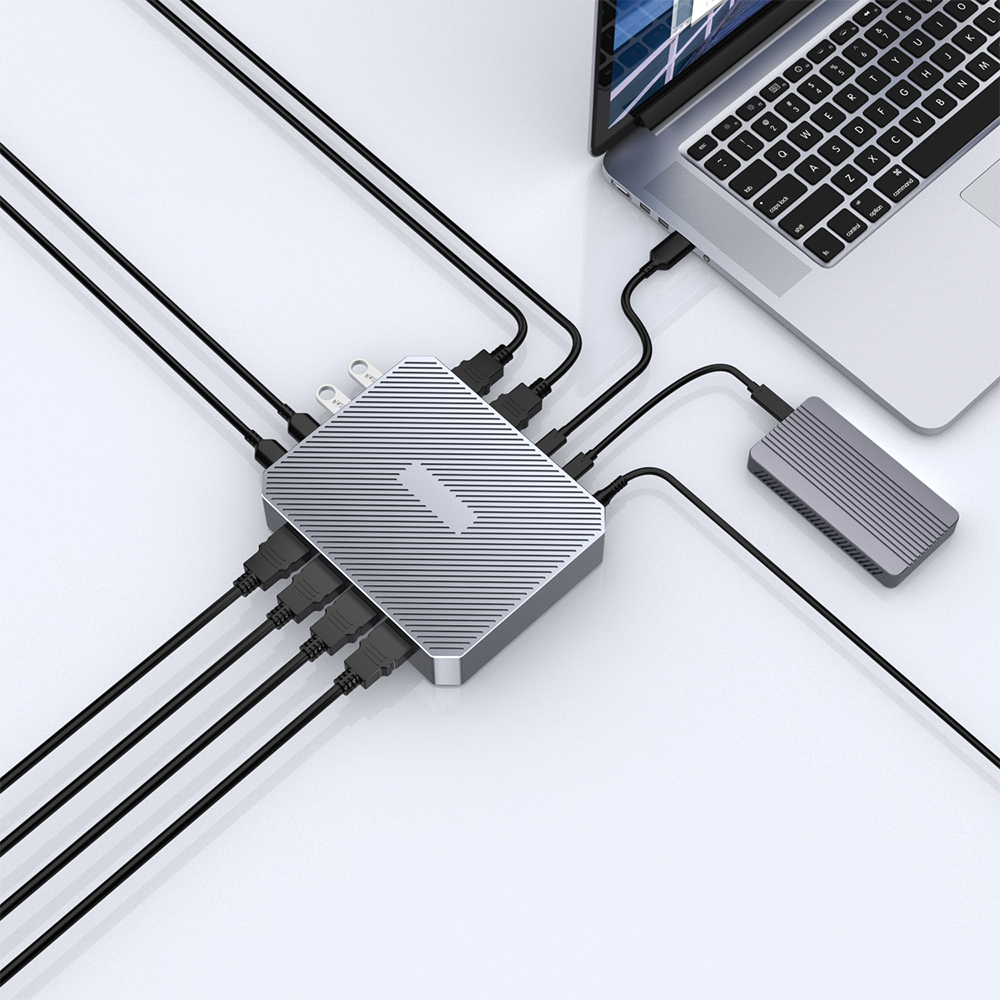
The plug-and-play feature simplifies device connections, allowing quick setup with laptops, gaming consoles, Blu-ray players, and smart TVs. With broad compatibility, HDMI has become a standard interface in home entertainment, professional AV production, and commercial displays, driving digital content consumption upgrades. Compared to legacy interfaces, HDMI's integrated design reduces cable clutter and eliminates signal conversion losses. Newer HDMI versions now support advanced features like dynamic HDR and variable refresh rates, continuously enhancing experiences in home theaters, gaming, and other scenarios as a reliable bridge for high-quality digital connectivity.
2. HDMI Ports on Docking Stations
Docking stations act as connectivity hubs to expand a computer's interface capabilities, with HDMI ports serving as key channels for high-definition AV output. By connecting a dock's HDMI port to a display/TV/projector via a single cable, users can easily bridge computers to external displays. Supported modes include extended desktop for multi-monitor productivity and screen mirroring for collaborative sharing.
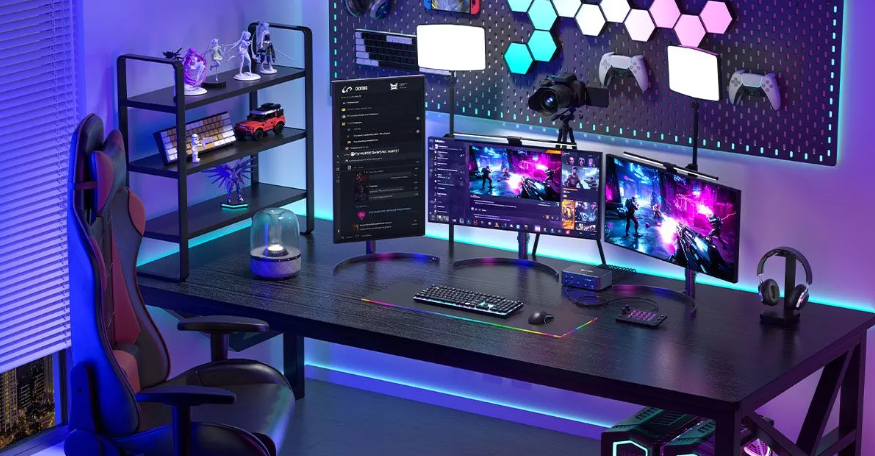
HDMI ports on docks typically support 4K resolution with sharp details and accurate color reproduction, meeting professional design and entertainment standards. Crucially, they also transmit audio signals without requiring separate cables, enabling true "one-cable" convenience for seamless audiovisual enjoyment. Overall, docking stations with HDMI ports provide reliable solutions for connecting laptops/desktops to external displays, whether for immersive workspaces, creative expansion, or content sharing in meetings/home theaters, helping build versatile digital workstations.
3. Deep Dive into Common HDMI Connection Issues
Signal Recognition Problems: When displays fail to detect HDMI signals, check cable insertion tightness to rule out contact issues; verify resolution/refresh rates are within device compatibility; update GPU and dock drivers to resolve software conflicts; and inspect HDMI ports for physical damage if needed.
Display Quality Optimization: Blurry images or resolution mismatches often stem from technical conflicts. Confirm display settings align with hardware capabilities to avoid tearing from overclocking; keep drivers updated for new display tech; use certified HDMI cables to prevent signal degradation, ensuring bandwidth meets 4K/60Hz demands to avoid compression artifacts.
Connection Stability Enhancement: Frequent disconnections require dual-direction checks—physical connections (oxidation/deformation) and system compatibility. Replace cables/ports to isolate hardware faults; update drivers for compatibility fixes; utilize dock hardware reset functions for temporary faults; and consider signal boosters for long cables.
Audio Transmission Repair: For video-only issues, check system audio output settings; update sound drivers for latest codec support; use ARC/eARC-enabled HDMI cables for audio return; and verify sampling rates/bit depths match device capabilities for professional audio to prevent distortion/silence.
4. HDMI Connection Troubleshooting Guide
Physical Connection Verification: Ensure HDMI cables are firmly inserted into dock and display ports. Re-plug cables to confirm metal contacts engage fully. For reversible ports, try flipping the cable to avoid reverse insertion.
Driver & Firmware Updates: Maintain latest drivers/firmware for stability. Download updates from dock/GPU manufacturer websites. Note: Some docks require proprietary software for firmware upgrades.
Display Parameter Calibration: Configure matching resolution/refresh rates in system display settings. Start with native display parameters, then adjust for optimal results. Use safe mode to reset settings if blackouts occur.
Cross-Device Testing: Test the same HDMI cable/display port with other devices (e.g., consoles, Blu-ray players). Normal operation points to computer/dock issues; failures suggest display/cable faults.
System Reset Protocol: After steps 1-4, perform a system reset: Power off displays, restart computers/docks, then power on displays and manually select the correct HDMI input. Some displays require manual source selection to avoid auto-detection failures.

5. Advanced Troubleshooting Techniques
Test connections via DisplayPort/VGA to diagnose HDMI compatibility issues (e.g., weak HDMI support in devices).
Regularly update dock firmware from manufacturer sites to resolve compatibility/performance bugs (e.g., driver conflicts with specific GPUs).
For unresolved issues, contact dock/display manufacturer support for advanced diagnostics (e.g., hardware testing tools) or customized solutions.
Conclusion
Systematic troubleshooting significantly improves device stability. This guide's step-by-step instructions and practical tips help users overcome connection barriers. By standardizing physical checks, driver updates, and parameter tuning, reliable hardware connections are established, ensuring smooth video/audio transmission. This proactive approach not only resolves immediate faults but extends equipment lifespan through maintenance (e.g., preventing intermittent blackouts via cable checks; fixing compatibility via firmware updates). Ultimately, it enables efficient dock-display collaboration, enhancing work efficiency and immersive experiences across office, entertainment, and multimedia scenarios.
Everything You Need to Know About Docking Stations
KVM Extenders: A Guide to Remote Computer Control
Leave a Reply
Your email address will not be published.Required fields are marked. *