By PURPLELEC | 11 August 2025 | 0 Comments
USB Port Connected but Not Working? Solutions to Hub Issues
Despite all devices being connected, the USB port still fails to function properly. This might indicate problems with the USB hub. To resolve this issue, you can follow the steps below to test and ensure that each component is working correctly, thereby eliminating potential sources of the problem.
Testing Computer USB Ports and Connecting Cables
If your computer has multiple USB ports of different types, try inserting the device into different ports to determine whether the issue is limited to a specific port. At the same time, use different cables to connect external devices and carefully check whether the existing cables are torn, melted, or otherwise damaged.
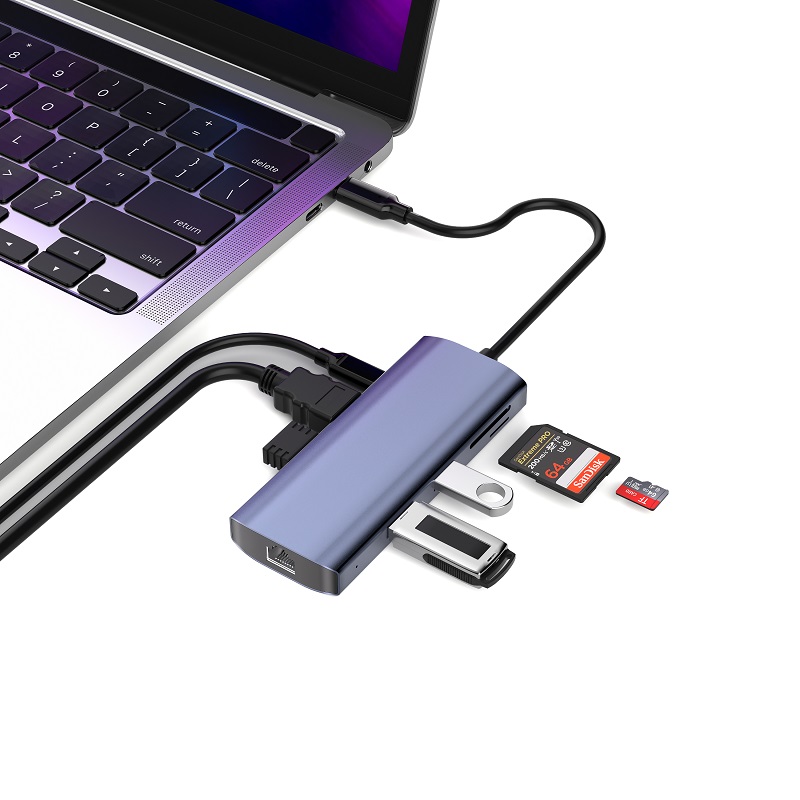
Testing with Different Devices
If a mouse doesn't work properly in a specific port, try using other devices such as a keyboard or printer to determine whether the problem lies with the device itself. Additionally, insert the device into another computer. If it works normally on the other computer, it further confirms that there may be issues with the settings or hardware of the original computer.
Testing the USB Hub
1、Power Supply: If the USB hub comes with a power adapter, make sure to supply power to it.
2、Connecting Devices: Connect USB external devices. Note that the USB hub will not appear in the system's hardware list, but the connected USB devices will be displayed.
3、Driver Installation: Install the drivers for the USB external devices, as well as the latest drivers for the USB controller and motherboard chipset. It's important to note that the USB hub does not require any drivers or software to operate on your operating system. It runs independently of software and can function on any operating system.
Testing USB External Devices
1、Power Connection: If the device requires it, connect an external power supply.
2、Basic Testing: Confirm that the external device can operate normally on a standard USB port.
3、Troubleshooting: If the USB external device can be detected on a standard USB port but not on the hub, take the following steps:
Use a new USB A-to-B cable.
Test your setup with basic external devices such as a keyboard or mouse.
Try using another USB port for testing.
Apple Embraces USB-C: Transformation, Advantages, and the Boost from Purplelec Accessories
HDMI Technology Comprehensive Analysis: Specifications, Performance, and Compatibility Guide
Leave a Reply
Your email address will not be published.Required fields are marked. *