By PURPLELEC | 30 July 2025 | 0 Comments
Multi-Stream Transport (MST) Technology: Unlocking the Possibilities of Multi-Display Configurations
Multi-Stream Transport (MST) technology is a one-stop solution to the challenges of multi-display connectivity. It allows users to easily connect devices such as laptops, tablets, and desktops to multi-display configurations through a single connection. Technologies like Thunderbolt 5, USB 4, and DisplayPort 1.2 have opened up new possibilities for advanced users. However, building a viable multi-display configuration requires some knowledge. This guide provides an in-depth understanding of MST's basics, how it works, its applications, its advantages, and how it compares to other technologies.

What is MST?
MST, or Multi-Stream Transport, is a key component of DisplayPort technology developed by the Video Electronics Standards Association (VESA). Its primary purpose is to enable unique display effects on multiple monitors through a single connection.
The Relationship between MST and DisplayPort
Since VESA's introduction of DisplayPort in 2009, various versions of DisplayPort have become an integral part of modern computing devices. DisplayPort is both a protocol and a physical connector. MST was introduced in VESA's DisplayPort version 1.2 and has become a mandatory feature in all subsequent DP versions. MST's capabilities are largely determined by the bandwidth of each DP version. For example, DP 1.2 uses the HBR2 transmission mode, with a bandwidth of up to 21.6 Gbps, while DP 2.1 uses the UHBR 20 transmission mode, with a bandwidth of up to 80 Gbps.
USB-C and MST
USB-C has been rapidly adopted by devices such as laptops, smartphones, and tablets due to its comprehensive capabilities. The latest USB4 V2.0 uses USB-C ports, delivering up to 40 Gbps per lane, and a total of 80 Gbps in a dual-lane configuration. It can transmit both DisplayPort v2.1 and PCIe protocols over a single USB-C cable, allowing users to connect to mobile or desktop computing devices and access multiple display outputs via the DisplayPort protocol, thereby leveraging MST technology.
If your desktop, laptop, or tablet has a Thunderbolt port, you can unlock the potential of MST through DP 2.1 tunneling technology. The latest Thunderbolt 5 uses a USB-C interface and supports PD, DP2.1, PCIe, HDMI2.1, and USB4 protocols. Its 120Gbps data transfer rate makes MST far superior to other connection interfaces.
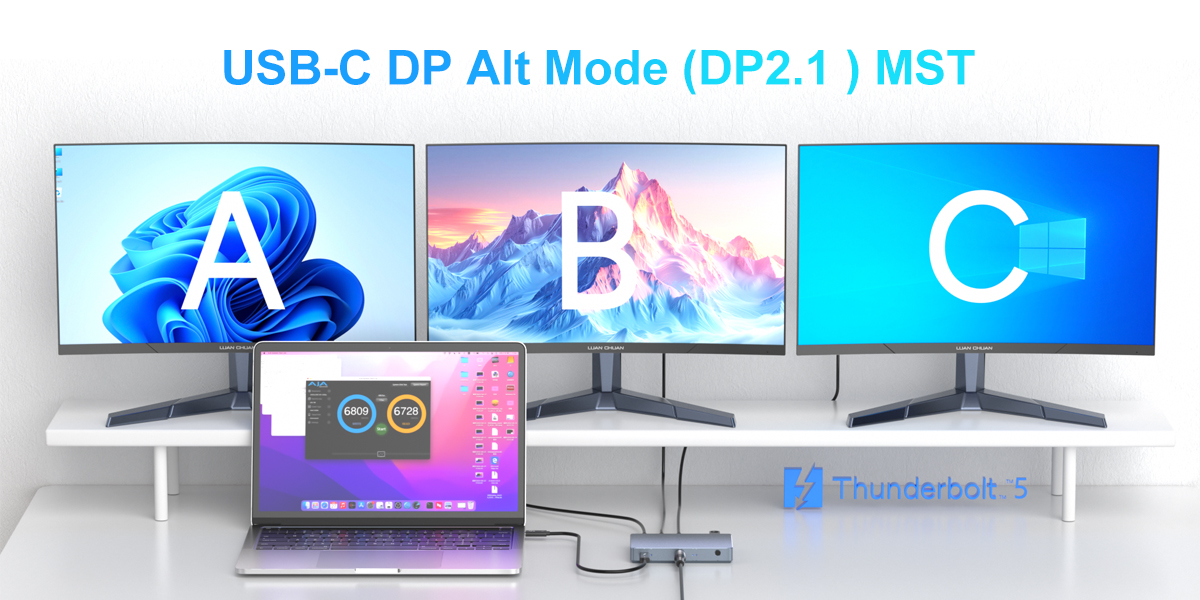
How MST Works
The limited number of pins in the physical cable of a DisplayPort, USB-C, or Thunderbolt connection determines the number of video streams that can be sent. MST uses decoupling technology to separate the physical channel video data into multiple virtual channels, or "streams." Each stream represents a portion of the image. MST leverages the high bandwidth of DisplayPort to efficiently send micro-data packets based on time. Through time-division multiplexing, a single physical connection can carry multiple audio and video streams. Theoretically, a single DisplayPort connection can carry up to 63 audio and video streams, without synchronization between these channels.
Users can daisy-chain monitors with DisplayPort outputs or use a dedicated DisplayPort MST hub to expand the number of monitors. The number of monitors connected and their resolutions depends on the bandwidth of the connection.
MST Advantages and Applications
MST is an efficient multi-display configuration that provides a clean and powerful digital signal, ensuring crystal-clear display quality. It improves multitasking efficiency, enhances the gaming experience, reduces cable count, and reduces installation costs and cable management issues.
Enhanced Multitasking Efficiency: Multi-display is a must-have for professionals like traders, streamers, and designers, providing multitasking capabilities, enhancing collaboration, saving time, and improving work efficiency.
Multi-Display Configuration Possibilities: MST supports various configurations, including mirroring, extended desktops, and video walls, to meet diverse user needs.
Reduced Installation Costs and Cable Management: MST reduces installation costs and cable management issues through a single cable configuration.

MST Application Scenarios
Professional Workstations: Financial, engineering, and design professionals leverage multi-display setups to enhance their work.
Gaming Applications: Gamers use MST to display a single video output across multiple stacked monitors, creating video walls for an enhanced sense of immersion.
Home Theater Setups: Video walls deliver higher-quality images, surpassing the capabilities of projectors.
Control Room: MST makes control room display maintenance and configuration easier, allowing for seamless addition and removal of displays.
Education: Auditoriums, classrooms, and lecture halls leverage MST to ensure large displays have extended, mirrored, and video wall capabilities.
Setup and Compatibility Notes
How to Set Up MST:
Using DisplayPort 1.2 or later, there are two ways to set up a multi-monitor configuration: daisy chain configuration and using an MST Hub.
Daisy chain configuration hardware requirements: a DisplayPort 1.2-compatible monitor, integrated graphics or dedicated GPU with MST support, a USB-C or DisplayPort connection port, and a monitor with both DP output and MST.
MST Hub setup hardware requirements: a DisplayPort 1.2-compatible monitor, integrated graphics or dedicated GPU with a USB-C port that supports MST, and a DisplayPort MST or USB-C MST Hub with multi-monitor connectivity.
Software Requirements:
Users will need a Windows operating system and optional monitor-specific software (such as Dell Display Manager, HP Display Center, or BenQ Display Pilot). Setup steps include plugging in the primary monitor, navigating the menu using the monitor's onboard buttons, searching for and turning on MST, connecting the cable, and adjusting the resolution and refresh rate.

Common Issues During MST Setup
Using a non-genuine cable: Always use a high-quality DP 1.2, USB-C, or Thunderbolt 4 cable to avoid monitor detection issues.
Unqualified hubs/adapters: Unqualified hubs or adapters can limit bandwidth, resulting in reduced resolution and refresh rate.
Incompatible monitors: Always use an MST-capable monitor; otherwise, the display may not be displayed or may not have an output DP port for daisy-chaining.
Future Developments
Given the trends in MST, we can reasonably foresee the following future developments:
Increased bandwidth: As the data transfer capabilities of Thunderbolt, USB, and DP continue to improve, more virtual channels may be available on a single physical connector.
Better control over data streams: With the increase in the number of data streams, future MST may support multi-monitor 8K displays with high refresh rates.
USB-C Integration: The widespread USB-C connector is becoming increasingly mainstream, allowing monitors with USB-C connections to switch to using only USB-C, eliminating the need for DisplayPort cables (MST).
Conclusion
MST is a remarkable method for connecting multiple monitors using the DisplayPort protocol, reducing cable clutter, lowering costs, and providing an easy-to-configure method for multiple monitor configurations. This technology outperforms all alternatives and predecessors, offering fast speeds, user-friendliness, and the ability to connect multiple monitors. Due to its popularity and widespread adoption, MST is poised for further growth, enabling larger display units with more monitors connected via a single cable. Furthermore, the increasing popularity of USB-C will ultimately replace DisplayPort cables. MST is an adaptable and powerful multi-monitor connection technology poised to open up exciting new avenues.
USB-C to 4K DisplayPort: A Comprehensive Guide
HDMI switcher: an all-around assistant for connecting and switching home entertainment devices
Leave a Reply
Your email address will not be published.Required fields are marked. *