By PURPLELEC | 19 June 2025 | 0 Comments
How To Start Livestreaming Your Games, By Platform
No matter which gaming platform you're using—PC, PlayStation, Xbox, Switch, Steam Deck, Android, or iOS—you can share your amazing gaming experiences with the world through live streaming. While this might seem daunting at first, you actually don't need much additional software or hardware (in some cases, none at all), as we'll demonstrate here.
Choosing a Streaming Platform
Before you start streaming, you'll need to choose a streaming platform. Twitch and YouTube are two of the most well-known platforms in the industry, but of course, you can also opt for others, such as TikTok. However, your choice may be somewhat limited by the gaming device you're using.
Windows PC
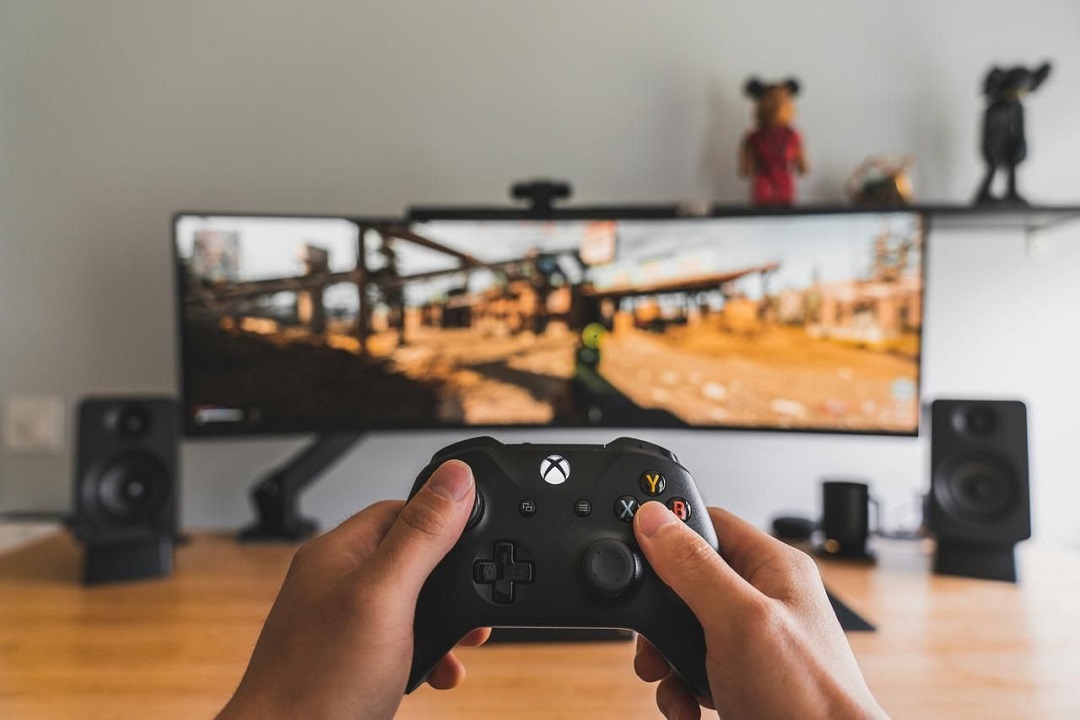
For Windows PC gamers, OBS (Open Broadcaster Software) Studio is the go-to streaming software. It's free, open-source, and powerful enough to handle everything you need—from microphone and webcam inputs (if you want to show your face while gaming) to connecting to various online streaming platforms like Twitch, YouTube, Facebook, and Trovo in China.
For beginners, Streamlabs (an adapted version of OBS Studio by Logitech) is a great choice. It offers many similar features, but some advanced tools for professional creators (such as more advanced customization options and the ability to stream on multiple platforms simultaneously) require a $19 per month Ultra subscription.
If you're set on using Twitch, then Twitch Studio is also worth considering. It's simple and easy to use, suitable for both beginners and advanced streamers, and seamlessly integrated with Twitch.
After installing one of these streaming tools, you're ready to go. You don't need additional hardware to start (though add-ons like Stream Deck are optional), but you will need a decent CPU and GPU to handle the extra tasks of recording and encoding your screen activity. Professional streamers sometimes use a second PC for these encoding and streaming tasks to ensure their primary gaming device performs at its best, but you don't need to worry about that when you're just starting out.

Sony PlayStation 5
Streaming on a console is relatively straightforward. On the PlayStation 5, open "Settings" from the home screen, select "Users and Accounts" and "Link with Other Services," then choose the streaming platform you want to use and enter your login information. You can also do this when you're about to start streaming for the first time, but it's more convenient to do it in advance.
After loading your chosen game, click the "Create" button (located at the top-left corner of the DualSense controller, with three vertical lines above it), then select "Broadcast" to view your platform options. Before starting the broadcast, you'll be asked to name it, and you can use the three-dot button to set various options, including whether to include microphone audio, video resolution, and more.
You can also access these options through the "Captures and Broadcasts" section in the PS5 settings screen. While broadcasting, a small panel will pop up on the screen showing basic statistics, including how long you've been broadcasting and how many people are watching. You can end the current broadcast from the same screen.
Another option is to stream from your PS5 to a PC using one of the software options mentioned above. For this, you'll need an internal or external capture card (such as one from Purplelec) to capture the PS5's output and use it with your PC software. This is a more complex setup, but it does offer greater flexibility for your PS5 streams—supporting more streaming platforms, more microphone and webcam options, and so on.
Xbox Series X or S
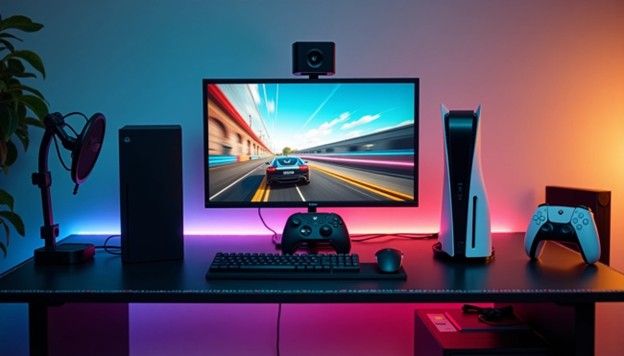
Streaming games from an Xbox Series X or Xbox Series S isn't particularly difficult, especially if you only want to use Twitch. There's a dedicated Twitch app in the store that you can access directly from the Xbox home screen and use to log in to your Twitch account (if you haven't already, sign up for one).
Before broadcasting to the wider world, it's definitely worth spending some time exploring the various streaming options within the Twitch app. You can configure microphone levels, set where the pop-up broadcast bar appears on the screen, choose the video resolution to stream at (a lower resolution can help with slower internet connections), and more.
You can start streaming within the Twitch app—just select "Go Live" (in the bottom-left corner). Another option is, while gaming, press the Xbox button on your controller, then select "Capture and Share," "Live Stream," and then the previously installed Twitch app. If you're logged in correctly, you can select "Start Streaming" to begin. The same menu also allows you to set the name of your broadcast.
Like the PS5, you can connect your Xbox Series X and Series S to a PC using an external or internal capture card. The Xbox's output goes into the capture card, which then feeds into your PC and one of the software options mentioned in the Windows PC section. However, this is something to consider for more advanced streaming options and effects, rather than something you need to worry about right away.
Nin-tendo Switch
The Nin-tendo Switch doesn't have any built-in streaming options, so you'll need to rely on a capture card, as mentioned in the PlayStation and Xbox sections. You'll also need a Switch with a dock and HDMI output—that is, the original Switch or OLED model, not the Nin-tendo Switch Lite.
After connecting your Nin-tendo Switch to the dock, connect the HDMI output port on the dock to your chosen capture card (such as one from AverMedia, Elgato, Purplelec, or any other manufacturer). You'll need a USB cable to connect the capture card to your computer and, optionally, another HDMI cable to connect to your TV, unless you're okay with watching the gameplay on your Windows PC.
Next, configure your chosen streaming software. When using a Windows PC, you have the freedom to choose your streaming platform, microphone and webcam overlay settings, and all the other options that come with software packages like OBS Studio and Streamlabs.
Game recording in 2025: Capture cards are still key equipment
Capture Card Series Devices Troubleshooting Guide
Leave a Reply
Your email address will not be published.Required fields are marked. *