Ultimate Guide to Docking Station Setup and Usage: From Selection to Troubleshooting
Setting up a docking station may initially seem daunting, but with the right approach, common issues can be easily resolved. This comprehensive guide will walk you through selecting, setting up, and using your docking station effectively.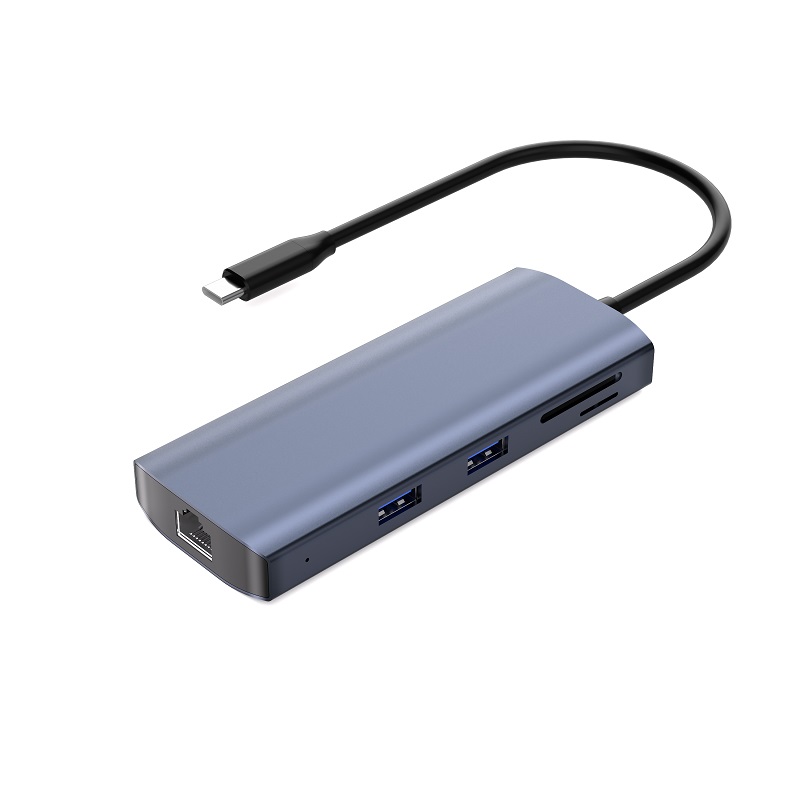
I. Choosing the Right Docking Station for Enhanced Efficiency
When selecting a docking station, it's crucial to consider its compatibility with your laptop, the number and type of ports you need, and whether it supports essential functions like charging and display connectivity. The right choice can significantly boost your workspace organization and productivity.
II. Common Setup Issues and Solutions for Docking Stations
Use Original Cables: Always utilize the cables that come with your docking station. Third-party cables may lack the necessary functionality, leading to connection problems. For instance, Purplelec products typically include a fully functional USB-C cable that supports both fast charging and data transfer, making it ideal for testing purposes.
Identify the Upstream Port: Docking stations often feature multiple USB-C ports, but only one is designated as the upstream port for connecting to your laptop, usually marked with a laptop symbol. Ensure you connect to the correct port.
Don't Overlook the Power Adapter: Most docking stations require an external power adapter to function optimally, even if you're not charging your laptop. Always connect the adapter to both the docking station and a power outlet.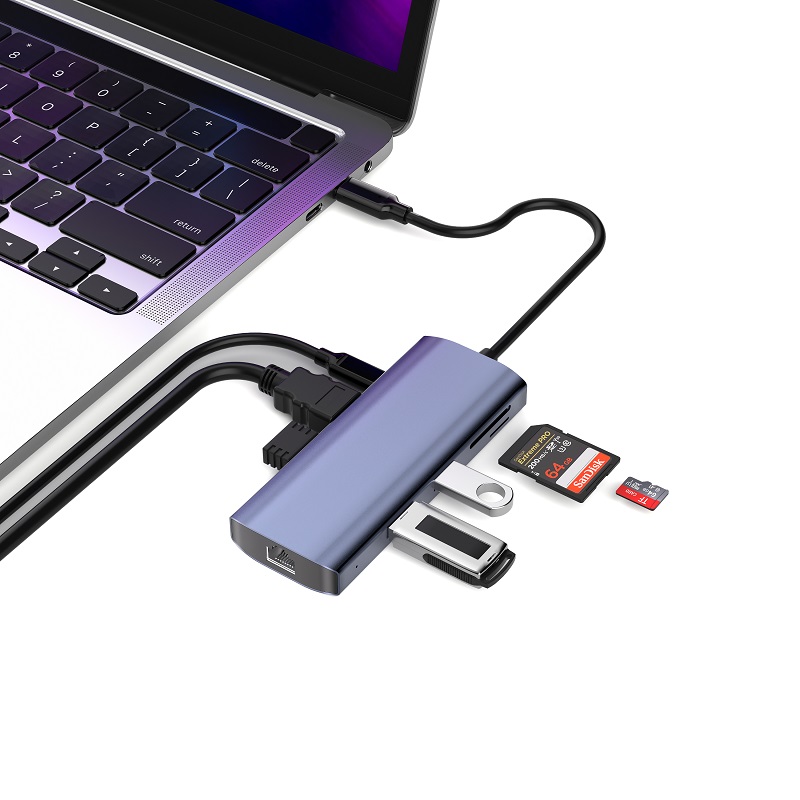
III. Key Steps to Optimize Your Docking Station Experience
Keep Drivers Updated: Regularly updating your laptop's operating system and drivers is vital for ensuring compatibility and optimal performance with your docking station. Visit the official websites of your computer or adapter manufacturer to download the latest drivers for USB-C to HDMI connections and other relevant components.
Connect Devices Directly: For the best connection quality, plug your peripherals directly into the docking station's ports. Avoid using USB hubs or extenders, as they can introduce potential issues.
Restart Your System: A simple restart of your laptop can often resolve temporary connection problems with the docking station.
IV. Troubleshooting and Seeking Assistance
Consult Troubleshooting Guides: If you encounter issues, refer to the troubleshooting tips provided in your user manual or online resources. These guides can help you quickly identify and resolve common problems.
Contact Customer Support for Personalized Help: If you're unable to resolve the issue on your own, don't hesitate to reach out to the docking station's customer support team. They have the expertise to provide personalized guidance and support, ensuring you get the most out of your docking station.
By following this guide, your docking station will be up and running smoothly in no time, enhancing your work efficiency and convenience.