By PURPLELEC | 09 April 2025 | 0 Comments
Video Capture Cards: A Comprehensive Guide and Practical Tips
To achieve high-quality video live streaming and recording on a PC, you often need to use some powerful tools, and capture cards are one of them. This article will answer in-depth questions such as "What is a capture card" and "How does a capture card work?", and give you a detailed overview of how to accurately select and correctly install the right capture card based on your needs.

I. What is a video capture card
Capture cards are rich in functions, but their core tasks are mainly two: on the one hand, they forward the video stream to the PC for processing; on the other hand, they provide pass-through support so that the video stream can be displayed on the monitor. Most external devices, such as cameras, game consoles, etc., send raw video streams that need to be converted before they can be properly processed by a laptop or PC. After processing, the PC encodes the data, and you can save it as a file or upload it to the Internet in real time. With a capture card, the pass-through function allows you to view the video stream in real time while the PC processes the recording.
There are two main physical forms of capture cards: one is an external device connected through an interface such as USB, USB-C, Thunderbolt, FireWire, etc.; the other is an internal device installed in the PCIe slot of the motherboard. Regardless of the type, the basic video capture setup is similar, just connect the device's HDMI cable to the card, and then use another cable to connect the device to the monitor.
Although there are devices that can combine video capture and conversion processing, this article focuses on traditional capture cards because they cannot perform true real-time streaming.
II. The role of capture cards
The function of capture cards is as its name suggests, capturing video signals from external devices through HDMI or other connections. With a capture card, you can capture the screen of a game console such as Xbox, PlayStation, or other gaming PC, and it acts as a receiver for input data throughout the process. The device's GPU transmits the data to the capture card, and then you can capture, record, encode the data on the card, and even upload it as live content to a suitable platform. Some capture cards also have real-time encoding capabilities similar to CPUs.
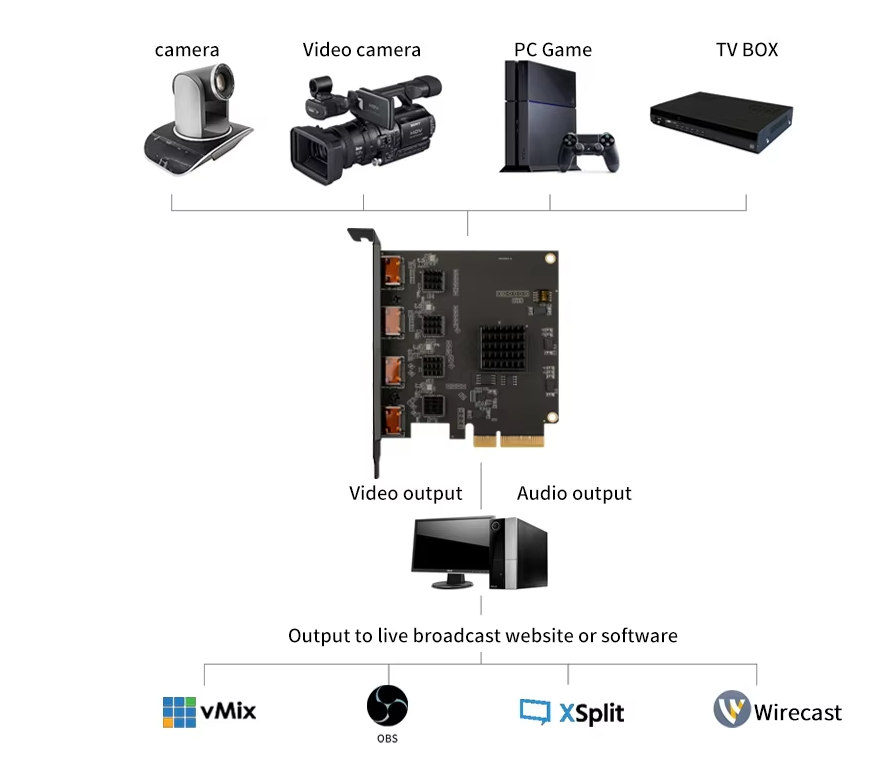
Capture cards allow users to record and transmit the content presented on the display screen with the help of capture card software or third-party streaming programs. The field of video game streaming is the main market for capture card manufacturers. Although game consoles such as Xbox Series X and PlayStation 5 directly support internal live broadcasting, their internal processing power and data transmission speed make it difficult to balance real-time high-quality streaming and video recording. At this time, capture cards can play an important role.
III. Do you need a capture card
Game consoles now have internal streaming and recording functions, and PCs can also achieve simultaneous recording, streaming and game running independently. From this perspective, capture cards are not necessary. But if you are looking for higher-quality recording and streaming effects, then it is necessary to buy a capture card.
IV. Comparison between capture cards and software
(I) Advantages of capture cards
No computer resources are occupied when performing high-quality data streaming or recording.
No delay and extremely high quality when used for streaming.
Easy to manage and create video clip libraries.
Even if the game console does not have built-in streaming functions, the game process can be recorded and streamed.
A capture card compatible with an SD card reader port that can record and stream camera footage.
(II) Advantages of screen recorders
If the program being recorded is not resource-intensive, a screen recorder is sufficient to meet recording and streaming needs.
Some operating systems and consoles come with built-in screen recorders, eliminating the need to purchase additional software and hardware for simple recording tasks.
Overall, capture cards are essential for professional streaming work, while recording software is more practical for everyday tasks and commercial purposes.
V. Types of capture cards
(I) PC capture cards
For players who play games with dual systems and need to record and/or stream video at the same time. Building a bridge between two PCs is particularly common for competitive gamers who require high FPS rates when capturing and recording, allowing the gaming PC to process game data while the other PC processes the video stream.
(II) Mac capture cards
The operating principle is the same as that of PC capture cards, but specifically supports Mac platform users and has a wider range of resolutions.
3DS and Wii Capture Cards
These cards are essential for streaming from a 3DS or Wii device.
(IV) PlayStation Capture Cards
Most PlayStation-specific capture cards provide users with additional software that helps stream, record, and edit footage.
(V) Xbox Capture Cards
With Xbox capture cards, users can handle larger files, record and live stream for longer periods of time, and edit videos more easily.
VI. How to Choose a Capture Card
When choosing a capture card, the first decision is whether to choose an external or internal card. Internal PCIe cards perform better because they connect directly to the motherboard; external PCIe cards are more mobile and can be easily switched between different recording and live streaming scenarios.
Today, many capture cards can handle 4K and above signals, but 1080p and 720p are still the current mainstream resolution standards. Make sure the capture card can support these resolutions for streaming, as the resolution when recording or gaming may not be the same as the streaming resolution. Also consider the resolution that the capture card can handle as a pass-through card, in case you need to record and play at 4K resolution, but upload only supports 720p, and make sure it supports high dynamic range (HDR) to prepare for future device upgrades.
VII. How to install the capture card
After purchasing a video capture card, be sure to read the label carefully before unboxing it and prepare the cables needed to connect the device. For example, a USB video capture card usually requires a USB cable and two HDMI cables. The following are the specific installation steps:
(I) USB external capture card installation steps
Take an HDMI cable and plug it into the input port on the capture card.
Plug the other end of the HDMI cable into the output port of the device.
Take another HDMI cable and plug it into the output port of the capture card.
Plug the other end of this HDMI cable into the input port of the display device.
Connect the capture card to the computer using a USB cable.
(II) Internal PCIe capture card installation steps
Find an empty PCIe slot on the motherboard and insert the capture card.
Take an HDMI cable and plug it into the input port on the capture card.
Plug the other end of the HDMI cable into the output port of the device.
Take a second HDMI cable and plug it into the output port of the capture card.
Plug the other end of this HDMI cable into the input port of the display device.
After installing the capture card hardware, you also need to download and install the software and drivers that come with the device. Most capture cards on the market come with proprietary software, but many users choose third-party programs such as OBS Studio to enhance streaming and recording capabilities.
4K Audio Video Capture Card HDMI USB 3.0 Video Capture Device
Quad HDMI Capture Card: Professional HD Capture Tool
Leave a Reply
Your email address will not be published.Required fields are marked. *